Showing posts with label widget. Show all posts

Official "Follow by Email" Feedburner Widget for Blogger

Now Blogger has introduced "Follow by Email" Feedburner email subscription widget for blogger blogs. So you don't want to add your site to the Feedburner manually. It will save your time.

To add this widget to your blog,

1.Log in to your dashboard --> Design -->Page Elements.

2.Click on 'Add a Gadget' on the sidebar.

3.Select "Follow by Email".

Select Follow by Email

4.Now if you want you can add "FeedBurner URL" manually. but your feed address is automatically added to the "Feedburner URL" box by Blogger.

Enter your FeedBurner URL

5. Click save. You are done.

Follow by EMail Subscription Box
READ MORE - Official "Follow by Email" Feedburner Widget for Blogger

How To Add Disqus Comment System to Blogger

DISQUS is a comments platform that helps you build an active community from your website's audience. It has awesome features, powerful tools, and it's easy to install.Before this I have explain how to add IntenseDebate comment system to blogger blog and now I am going to explain how to add Disqus comment system to your blogger blog.

There are lot of good features with Disqus comment system when we comparing it with Blogger default comment system.

Realtime comment system

Comments become more like live discussions with realtime posting and updating. By offering a faster, more intuitive experience, Disqus is everyone's favorite way to comment.

Notification and reply system

The notification system lets people know when they've received a response. Best of all, they can continue the conversation straight from the email.

Inline media embedding

Full integration with media services such as Youtube, Flickr, and more. Attach media such as photos and videos right within the comments.

Mobile commenting

Fully compatible with mobile websites for commenting while on the go. The default mobile theme is formatted with smartphones, like the iPhone or Android phones, in mind.

Social integration

Full integration with Facebook, Twitter, and more. Let people login, comment, and share using social services they already use and love.

The Community Box

A quick way to show off what your community is made up of. The community box gives everyone a summary view of the activity and people participating on the site.

Liking and sharing

People can rate what they like by liking pages or comments and then sharing that on Facebook, Twitter, and other networks.

Moderation tools

Powerful and easy-to-use tools helps you keep your community under control. The moderation panel is designed for managing a large volume of incoming comments.

Spam-Be-Gone

Our in-house anti-spam technology keeps spam and unsavory people out of your community. Our anti-spam continually learns from the rest of the Disqus network to keep your site safe.

Mobile apps

Disqus apps are available for the iPhone, Android, and webOS phones. Manage your communities while you're on the go with these freely available apps.

Blacklists and whitelists

Make daily moderation easier with granular control over who gets to contribute within the community. Disqus gives you powerful tools such as blacklists, whitelists, and word filtering.

Import and export

Import existing comments into Disqus and sync up your data. All data is completely portable and can be exported at any time.

International languages

Disqus supports dozens of languages in addition to English. Complete your integration with native language support.

SEO-friendly and local sync

We offer plugins and integration methods that ensure compatibility with search engines.

Theme customization

Customize with CSS to smooth out the integration with your website. Or, use our advanced theme editor to craft your own custom theme.

Tweets and reactions

Disqus brings the conversation back to your site by collecting Tweets, mentions, and other reactions from around the web.

Profile management

Commenters control their personas and reputation across the different communities they participate on. Disqus makes it easy to track and keep conversations together.

Activity streams

Audiences stay engaged with insight into others' activity all over the web. Integrated activity streams let people see where else the smart people are talking.

Connected communities

Disqus reaches 200 million people every month across half a million websites and communities on the web. Keep the conversations lively by connecting your audience with the millions of others already on Disqus.

Before follow the instruction given below,

(a) Login to your Blogger Account.
(b) Backup your blogger template.
(c) Make sure that your blog is using Blogger Layouts. See upgrade instructions if not.
(d) Enable commenting. See instructions to enable commenting. Make sure that Who Can Comment? is set to Anyone.

Now Follow the steps given below. You can add Disqus comment system to your blog easily.

1. First create a account on Disqus.com.

2. Now visit this link to add your blog to the Disqus account:

http://disqus.com/admin/register/

3. Fill in the necessary details and click on "Continue".

Register your blog

4. Now you can see below screen. select the option as you like and click on "Continue" again.

Select options

5. Now can see installer instructions page.

Select Install Instruction

Click on "Blogger" instructions.

Install Instruction

6. Now click on "Add site..." button.

Add your blog to Disqus

7. You will bring to your blogger account. If there are multiple blogs under your Blogger account, be sure to pick the correct blog. Select your blog and click on "Add Widget" button.

Add Page Element


You are done. you can see Disqus widget there in Blogger "page elements" page. For best performance, make sure that the widget is in the bottom slot of the bottom-most right column.

Now Disqus comment box will appear under your every blogger posts.


Note : Do you have existing comments in Blogger? You can import them into Disqus by visiting the import page under Tools.
READ MORE - How To Add Disqus Comment System to Blogger

How To Add IntenseDebate Comment System to Blogger

IntenseDebate is one of the most popular a feature-rich comment system for WordPress, Blogger, Tumblr and many other blogging/CMS platforms.In this tutorial I am going to explain how to add IntenseDebate comment system to Blogger blog.

With IntenseDebate,you can do many things than your default comment system.These are some main features of IntenseDebate comments.

IntenseDebate features:
  • Comment Threading.
  • Reply-By-Email.
  • Email Notifications.
  • Commenter Profiles.
  • Moderation/Blacklisting.
  • Reputation Points & Comment Voting.
  • Plugins API.
  • OpenID.
  • Widgets.
  • Twitter Connect.
  • Facebook Connect.
  • RSS Readers & Tracking.


HTML Formatting

You can also customize your links and add some photos to your comments. IntenseDebate supports the following HTML tags: <a>, <b>, <i>, <u>, <em>, <p>, <blockquote>, <br>, <strong>, <strike>, <img>

Gravatar

Intensedebate offers full Gravatar support. If you have a Gravatar they will automatically upload your Gravatar when you signup for IntenseDebate. You can choose to use your Gravatar or upload a different profile pic.

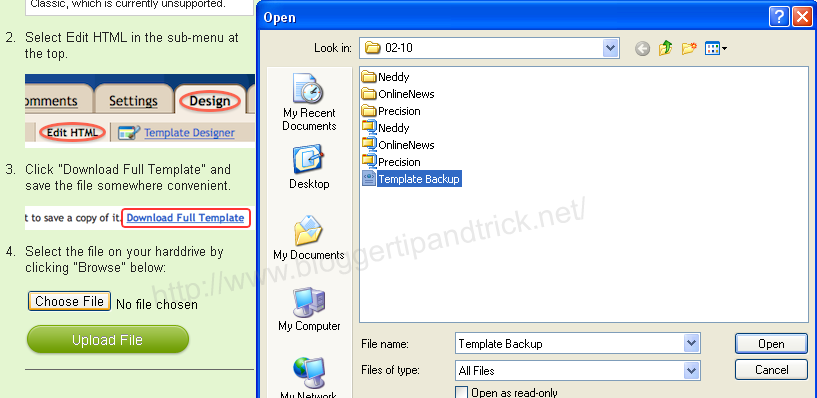
Before start this process,you must backup your blogger template first.Save the backup template file on your hard drive.


1.Create a Account on IntenseDebate.com.


2.Now add your blog to IntenseDebate : http://intensedebate.com/install


3.Then you can see this window. Now you have to select some option.


1.How would you like to install IntenseDebate?

select "Template" option.


2.Which blog posts should have IntenseDebate comments enabled?

Only on new posts
- Your old comments will be displayed using your blog's native comment system

On all blog posts
- IntenseDebate comments will be available on all posts, but your existing comments will be hidden.

Select "On all blog posts" option.

Note : If you want to keep "Blogger default comments of your old blog posts",then select "Only on new posts".

4.Scroll down to the bottom of the instructions.

Now upload the template you have backup.


5.After uploading it you can see a screen like below. Copy modified template code from the textfield.


6.Login to your blogger dashboard--> Design--> Edit html.

7.Select entire code in the Edit Template text Box and delete it.Now you must have a blank text box.


8.Now paste the code we have copied in step 5.

Save your template.You are done.


You can see IntenseDebate comment form under your blog posts.
READ MORE - How To Add IntenseDebate Comment System to Blogger

How To Embed Yahoo Media Player to Blogger

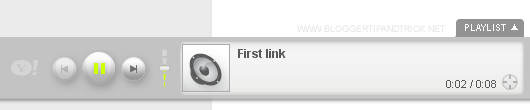
Yahoo Media Player is one of the easiest way to play audio files from your website or blog.It is very easy to embed into your site and only display when you click on the audio file name.Yahoo Media Player is not spend long time to load and someone can play all audio files of your website/blog using Play-list.

These are the main features of Yahoo Media Player:

  • Adds audio to your site with one line of HTML
  • Uses simple, easy-to-hack HTML instead of complicated proprietary markup, ushering in the REAL Media Web
  • Magical floating design never gets lost, is available when you need it, gets out of your way when you don't need it
  • Automatically finds all audio links on your page, turning your page into a playlist
  • Plays all your blog entries with a single button click
  • Allows you to put the play buttons where they belong: IN CONTEXT
  • Keeps the user in the page rather than sending them away to a media player
  • Picks up your images and adds them as cover art
  • Requires no download, install or maintenance

Yahoo Media Players

Follow these simple steps to embed Yahoo Media Player to your blog or website.

1.Login to your blogger dashboard--> Design - -> Edit HTML.

2.Scroll down to where you see </head> tag .

3.Copy below code and paste it just before the </head> tag .

<script type="text/javascript" src="http://mediaplayer.yahoo.com/js"></script>


4.Now save your template.

5.Go to Layout --> Page Elements.

6.Click on 'Add a Gadget'.

7.Select 'HTML/Javascript' and add the code given below (You can also add this code into Edit Html section of your Post Editor.):

<a href="DIRECT_URL_OF_YOUR_MP3-FILE">Name_Of_the_Mp3_File</a>

Note:

Replace "DIRECT_URL_OF_YOUR_MP3-FILE" with your .mp3 file direct url.
Replace "Name_Of_the_Mp3_File" with any name you like.

Look at the example given below:

<a href="http://mediaplayer.yahoo.com/example1.mp3">First link</a>


You can see more info about Yahoo Media Player from here : http://mediaplayer.yahoo.com/.
READ MORE - How To Embed Yahoo Media Player to Blogger

21 Amazing jQuery Tabs Collection

Using jQuery,we can do many things very easily than normal JavaScript.So jQuery has became the most popular JavaScript library in use today.I wrote my previous article about popular jQuery featured content sliders,that are used by web designers.In this article I am going to show you a better jQuery Tabs collection you can use for your websites or blogs.When we go to websites,we can see different types of jQuery Tabs.If you add a tab view to your website,it save a lot of space in your web pages.Also it gives a better appearance to your website or blog.

21 Amazing jQuery Tabs CollectionYou can visit authors websites for configuration instructions/guides,can view live demos of these jQuery Tabs and also you can download files of these tabs using the URLs given below.I checked all of these links and they are working correctly.But in future if this links doesn't work, please leave a comment.I hope to add more jQuery tabs to this article in the future ,so bookmark this web page for future reference.If there is a jQuery tab you like,but you can not add it to your website or blog yourself,you can contact me,I can do it for you.

1. Simple Tabs w/ CSS & jQuery


Article : http://www.sohtanaka.com/web-design/simple-tabs-w-css-jquery/

Demo : http://www.sohtanaka.com/web-design/examples/tabs/


2. jQuery Tabbed Interface / Tabbed Structure Menu Tutorial


Article : http://www.queness.com/post/106/jquery-tabbed-interfacetabbed-structure-menu-tutorial

Demo : http://www.queness.com/resources/html/tabmenu/jquery-tabbed-menu-queness.html

Download : http://www.queness.com/resources/archives/jquery-tab-menu.zip


3. jQuery Sliding Tab Menu for Sidebar Tutorial


Article : http://www.queness.com/post/274/jquery-sliding-tab-menu-for-sidebar-tutorial

Demo : http://www.queness.com/resources/html/scrollto/index.html

Download : http://www.queness.com/resources/archives/jquery-scrollto.zip


4. Create a smooth tabbed menu in jQuery


Article : http://yensdesign.com/2008/12/create-a-smooth-tabbed-menu-in-jquery/

Demo : http://yensdesign.com/tutorials/tabs/

Download : http://www.yensdesign.com/tutorials/tabs/tabs.zip


5. Updated JQuery Nested Tab Set with Demo


Article : http://blog.cutterscrossing.com/index.cfm/2007/6/15/Updated-JQuery-Nested-Tab-Set-with-Demo

Demo : http://blog.cutterscrossing.com/index.cfm/2007/6/15/Updated-JQuery-Nested-Tab-Set-with-Demo

Download : http://blog.cutterscrossing.com/enclosures/JQueryTabsDemo.zip


6. Sweet AJAX Tabs With jQuery 1.4 & CSS3


Article : http://tutorialzine.com/2010/01/sweet-tabs-jquery-ajax-css/

Demo : http://demo.tutorialzine.com/2010/01/sweet-tabs-jquery-ajax-css/demo.html

Download : http://demo.tutorialzine.com/2010/01/sweet-tabs-jquery-ajax-css/demo.zip


7. Animated tabbed content with jQuery


Article : http://www.gayadesign.com/diy/animated-tabbed-content-with-jquery/

Demo : http://www.gayadesign.com/scripts/tabbed/

Download : http://www.gayadesign.com/scripts/tabbed/tabbedContent.zip


8. Tab Navigation with Smooth Horizontal Sliding Using jQuery


Article : http://www.learningjquery.com/2009/09/tab-navigation-with-smooth-horizontal-sliding-using-jquery

Demo : http://www.learningjquery.com/2009/09/tab-navigation-with-smooth-horizontal-sliding-using-jquery

Download : http://assets.learningjquery.com/zips/tab-nav.zip


9. jQuery idTabs


Article : http://www.sunsean.com/idTabs/

Demo : http://www.sunsean.com/idTabs/

Download : http://www.sunsean.com/idTabs/jquery.idTabs.min.js


10. Flowplayer Tabs


Article : http://flowplayer.org/tools/tabs/index.html

Demo : http://flowplayer.org/tools/demos/tabs/index.html

Download : http://flowplayer.org/tools/img/tabs/tabs.zip
http://flowplayer.org/tools/download/index.html


11. Create a Slide Tabbed Box using jQuery


Article : http://www.hieu.co.uk/blog/index.php/2009/01/28/how-easy-to-create-a-slide-tabbed-box-using-jquery/

Demo : http://www.hieu.co.uk/Examples/SlideTabs/index.html

Download : http://www.hieu.co.uk/Examples/SlideTabs.zip


12. Flipping Content Tabs Using jQuery


Article : http://webdeveloperplus.com/jquery/create-flipping-content-tabs-using-jquery/

Demo : http://demo.webdeveloperplus.com/flipping-tabs/

Download : http://demo.webdeveloperplus.com/source-code/flipping-tabs.zip


13. Create A Tabbed Interface Using jQuery


Article : http://net.tutsplus.com/javascript-ajax/create-a-tabbed-interface-using-jquery/

Demo : http://nettuts.s3.amazonaws.com/042_jQueryUITabs/demo/index.html

Download : http://nettuts.s3.amazonaws.com/042_jQueryUITabs/source.zip


14. Create a Slick Tabbed Content Area using CSS & jQuery


Article : http://net.tutsplus.com/html-css-techniques/how-to-create-a-slick-tabbed-content-area/

Demo : http://nettuts.s3.amazonaws.com/001_Tabbed/site/jQuery.html

Download : http://nettuts.s3.amazonaws.com/001_Tabbed/TabsPSD.zip


15. Dynamic Fun with SimplePie and jQuery


Article : http://net.tutsplus.com/javascript-ajax/building-a-better-blogroll-dynamic-fun-with-simplepie-and-jquery/

Demo : http://nettuts.s3.amazonaws.com/036_BetterBlogRoll/sourceFiles/index.html

Download : http://nettuts.s3.amazonaws.com/036_BetterBlogRoll/sourceFiles.zip


16. Creating Rotating Tabs using jQuery


Article : http://www.ilovecolors.com.ar/rotating-jquery-tabs/

Demo : http://www.ilovecolors.com.ar/wp-content/uploads/rotating-jquery-tabs/

Download : http://www.ilovecolors.com.ar/wp-content/uploads/2009/12/rotating-jquery-tabs1.zip


17. Ultra simple jQuery tabs


Article : http://justfreetemplates.com/blog/2009/08/31/ultra-simple-jquery-tabs.html

Demo : http://justfreetemplates.com/blog/wp-content/uploads/2009/08/simple-jquery-tabs.html


18. jQuery To Fade Effects tabs


Article : http://www.roseindia.net/ajax/jquery/fadeEffectTabs.shtml

Demo : http://www.roseindia.net/ajax/jquery/fadeEffectTab.html


19. Playing with jQuery Tabs


Article : http://insideria.com/2009/03/playing-with-jquery-tabs.html

Demo : http://www.coldfusionjedi.com/demos/jquerytabs/test.cfm


20. Degradable Tabs With jQuery UI


Article : http://www.ultramegatech.com/blog/2009/09/degradable-tabs-with-jquery-ui/

Demo : http://www.ultramegatech.com/blog/examples/tabs.htm


21. jQuery UI Tabs with Next/Previous


Article : http://css-tricks.com/jquery-ui-tabs-with-nextprevious/

Demo : http://css-tricks.com/examples/TabsNextPrev/

Download : http://css-tricks.com/examples/TabsNextPrev.zip
READ MORE - 21 Amazing jQuery Tabs Collection

How To Add Twitter Official Tweet Buttons to Blogger

Few days ago Twitter has introduced their own tweet buttons for web masters.Now you can use this twitter button directly share your posts through twitter without any third party web site.So you and your visitors don't want to authenticate any third party web site to access your Twitter account.These new tweet button loads very fast and anyone can share your article with in few seconds.There are 3 types of Beautiful Tweet buttons : Vertical count, Horizontal count and No count.Here I am going to describe how to add these Twitter buttons to your blogger blog.

If you like o add these Twitter official share button to your blogger blog,then follow the steps given below.


1.Login to your blogger Dashboard--> Design- -> Edit HTML

2.Click on "Expand Widget Templates"

3.Scroll down to where you see below code:

<div class='post-header-line-1'/>

4.Now Copy your "Twitter tweet button" code and paste it just below the above code.

NOTE: If you can't find <div class='post-header-line-1'/> in your template, paste your "Twitter tweet button" code just before <data:post.body/> .

Code 1 : Vertical Count
<b:if cond='data:blog.pageType == "item"'>
<div style='float:right;margin-right:10px;'>
<a href="http://twitter.com/share" class="twitter-share-button" data-count="vertical" data-via="TWITTER-USERNAME">Tweet</a><script type="text/javascript" src="http://platform.twitter.com/widgets.js"></script>
</div>
</b:if>

Result:


Code 2 : Horizontal Count
<b:if cond='data:blog.pageType == "item"'>
<div style='float:right;margin-right:10px;'>
<a href="http://twitter.com/share" class="twitter-share-button" data-count="horizontal" data-via="TWITTER-USERNAME">Tweet</a><script type="text/javascript" src="http://platform.twitter.com/widgets.js"></script>
</div>
</b:if>

Result:


Code 3 : No Count
<b:if cond='data:blog.pageType == "item"'>
<div style='float:right;margin-right:10px;'>
<a href="http://twitter.com/share" class="twitter-share-button" data-count="none" data-via="TWITTER-USERNAME">Tweet</a><script type="text/javascript" src="http://platform.twitter.com/widgets.js"></script>
</div>
</b:if>

Result:


Note :
Remember to replace "TWITTER-USERNAME" with your real Twitter username.

If you want to show Tweet buttons not only Post pages but also Home page,Archive pages,Label pages,etc... , then remove "<b:if cond='data:blog.pageType == "item"'>" and "</b:if>" from above codes.

5.Now save your template.

You can view more info from here:

http://twitter.com/goodies/tweetbutton

Want to build a custom tweet button for your site? Check out developer documentation for the Sharing API to provide the same Tweet Button sharing functionality with your own style :

http://dev.twitter.com/pages/tweet_button
READ MORE - How To Add Twitter Official Tweet Buttons to Blogger

How To Display Recent Twitter Tweets Using JQuery

Do you want to show your recent tweets inside your website or blogger blog?Then,this tutorial will helpful for you, to add recent tweets into your website using Jquery.Your recent tweets will load fast using jquery and also you can change number of tweets must display very easily.If you want you can read advanced details about tutorial from here: http://www.thewebsqueeze.com/web-design-tutorials/displaying-your-tweets-on-your-website-with-jquery.html

Twitter is a social networking and microblogging service, owned and operated by Twitter Inc., that enables its users to send and read other user messages called tweets. Tweets are text-based posts of up to 140 characters displayed on the author's profile page.


Now follow the steps given below to add this recent tweets widget to your website or blog.

1.Login to your blogger dashboard--> Design - -> Edit HTML.

2.Scroll down to where you see </head> tag .

3.Copy below code and paste it just before the </head> tag .

<script src="http://ajax.googleapis.com/ajax/libs/jquery/1.4.2/jquery.min.js" type="text/javascript"></script>

<script type="text/javascript" charset="utf-8">

function showTweets(elem, username, number)
{
var html = '<ul>';


var tweetFeed = 'http://twitter.com/status/user_timeline/' + username + '.json?count=' + number + '&callback=?'
$.getJSON(tweetFeed, function(d)
{

$.each(d, function(i,item)
{
html+='<li>'+item.text+'</li>';
})
html+="</ul>";

elem.children().fadeOut('fast',function() {
elem.append(html);
})
})
}

$(function() {
$('#error').remove();
$('#preload').show();
showTweets($('#tweets'), 'btipandtrick', 5)
});

</script>

<style type="text/css">
#preload {display: none;}

#tweets ul li{
list-style-type:square;
list-style-position:inside;
list-style-image:url('https://blogger.googleusercontent.com/img/b/R29vZ2xl/AVvXsEgf2mcM4zWtabZVUHQa2o8cpI2w8BYaEi0AkjwZguV9mlJnqjVNalcxR-BUbyBquJkwwwhcjcTd9d1xykKVp0dKUTKoDHsDxndzxryFB4jGXvuG2q5fFe8tSHO6MjJ1gskMl8kMz_UHXz0/s1600/twitter.png');
margin:0 0 0;
padding:0 0 0;
}
</style>

NOTE :
btipandtrick : Replace this with your twitter username.

5 : Number of tweets must appear.

4.Now save your template.

5.Go to Layout --> Page Elements.

6.Click on 'Add a Gadget'.

7.Select 'HTML/Javascript' and add the code given below:

<div style="font-size:12px;font-family:Arial;">
<div id="tweets">
<h3 id="error">There was a problem fetching tweets</h3>
<h3 id="preload">Currently loading your tweets...</h3>
</div>
<ul><li style="list-style-type:none;"><a href="http://www.twitter.com/btipandtrick">Follow me on twitter</a></li></ul>
</div>

You are done.
READ MORE - How To Display Recent Twitter Tweets Using JQuery

How To Add Smart Jquery Featured Slider to Blogger/Websites

This is a another tutorial about, how to add great featured jquery content slider to your blogger blog or other website.Read the instruction given below to add this featured content slider to your blog with in few minutes.Remember to use 307px width and 254px height images for this slider.I recommend to DOWNLOAD java script files and host it yourself.Also you can see the DEMO of this slider HERE.

1.Login to your blogger dashboard--> Design - -> Edit HTML.

2.Scroll down to where you see </head> tag .

3.Copy below code and paste it just before the </head> tag .


<script src='http://bnote.googlecode.com/files/jquery-1.2.6.min.js' type='text/javascript'></script>
<script src='http://bnote.googlecode.com/files/jquery.jcarousel.pack.js' type='text/javascript'></script>
<script src='http://bnote.googlecode.com/files/jquery-ui-personalized-1.5.2.packed.js' type='text/javascript'></script>

<script type="text/javascript">
jQuery(document).ready(function() {
jQuery('#mycarousel').jcarousel({
wrap:"both",
scroll:2,
animation:"slow"
});
function mycarousel_initCallback(carousel) {
jQuery('#featured-next-button').bind('click', function() {
carousel.next();
return false;
});

jQuery('#featured-prev-button').bind('click', function() {
carousel.prev();
return false;
});
jQuery('.button-nav span').bind('click', function() {
carousel.scroll(jQuery.jcarousel.intval(jQuery(this).text()));
return false;
});
};
jQuery('#feature-carousel').jcarousel({
wrap:"both",
scroll:1,
auto:10,
initCallback: mycarousel_initCallback,
buttonNextHTML: null,
buttonPrevHTML: null
});

});
</script>

<style type="text/css">
.jcarousel-skin-tango .jcarousel-container {-moz-border-radius: 10px;}

.jcarousel-skin-tango .jcarousel-container-horizontal {width: 941px;margin: 0 auto;padding:0 20px;}

.jcarousel-skin-tango .jcarousel-clip-horizontal {width: 941px;height: 254px;}
.jcarousel-skin-tango .jcarousel-item {width: 307px;height: 254px;}
.jcarousel-skin-tango .jcarousel-item-horizontal {margin-right: 10px;}
.jcarousel-skin-tango .jcarousel-item-placeholder {background: #fff;color: #000;}

.jcarousel-skin-tango .jcarousel-next-horizontal {
background:transparent url(https://blogger.googleusercontent.com/img/b/R29vZ2xl/AVvXsEh7p3EERFRQwtA9qmmBezI5Tp3F7R4jGJdZdfyYZGARslhnA1qlnspL8w7IB6rzVXORJXfhNCdUS5IYpH8qAvMt6mFUeXAxv-JBAanqPQoN8xtzu11tPCslKFxnsx2CyoVrb8U5w8BDXnab/s1600/image-slider-button.png) no-repeat scroll -46px 0;
cursor:pointer;
height:254px;
right:20px;
position:absolute;
top:0;
width:46px;
}

.jcarousel-skin-tango .jcarousel-prev-horizontal {
background:transparent url(https://blogger.googleusercontent.com/img/b/R29vZ2xl/AVvXsEh7p3EERFRQwtA9qmmBezI5Tp3F7R4jGJdZdfyYZGARslhnA1qlnspL8w7IB6rzVXORJXfhNCdUS5IYpH8qAvMt6mFUeXAxv-JBAanqPQoN8xtzu11tPCslKFxnsx2CyoVrb8U5w8BDXnab/s1600/image-slider-button.png) no-repeat scroll 0 0;
cursor:pointer;
height:254px;
left:20px;
position:absolute;
top:0;
width:46px;
}

.jcarousel-container {position: relative;}
.jcarousel-clip {z-index: 2;padding: 0;margin: 0;overflow: hidden;position: relative;}
.jcarousel-list {z-index: 1;overflow: hidden;position: relative;top: 0;left: 0;margin: 0;padding: 0;}
.jcarousel-list li,.jcarousel-item {float: left;list-style: none;width: 75px;height: 75px;}
.jcarousel-next {z-index: 3;display: none;}
.jcarousel-prev {z-index: 3;display: none;}

#news-slider{background-color:#FFFFFF;padding:20px 0;}
#news-slider img{border:none;height:254px;width:307px;}
</style>


4.Now save your template.

5.Go to Layout --> Page Elements.

6.Click on 'Add a Gadget'.

7.Select 'HTML/Javascript' and add the code given below:

<div id='news-slider'>
<ul class='jcarousel-skin-tango' id='mycarousel'>
<li><a href='SLIDE-1-LINK-HERE'><img src='SLIDE-1-IMAGE-ADDRESS-HERE'/></a></li>
<li><a href='SLIDE-2-LINK-HERE'><img src='SLIDE-2-IMAGE-ADDRESS-HERE'/></a></li>
<li><a href='SLIDE-3-LINK-HERE'><img src='SLIDE-3-IMAGE-ADDRESS-HERE'/></a></li>
<li><a href='SLIDE-4-LINK-HERE'><img src='SLIDE-4-IMAGE-ADDRESS-HERE'/></a></li>
<li><a href='SLIDE-5-LINK-HERE'><img src='SLIDE-5-IMAGE-ADDRESS-HERE'/></a></li>
</ul>
</div>

NOTE : Replace,

SLIDE-X-LINK-HERE with your real featured posts links.

SLIDE-X-IMAGE-ADDRESS-HERE with your real slide images addresses.

Look at the example below:
<div id='news-slider'>
<ul class='jcarousel-skin-tango' id='mycarousel'>
<li><a href='#'><img src='https://blogger.googleusercontent.com/img/b/R29vZ2xl/AVvXsEiOJkDdJPySHZG8ltHBIuaDrkLUMZuaxqcz9IDll5dWg4hQMQMzAp8-PivYsKRKdBVnRsVANF9FFyC-yBVGW_1wCDtFT3QfFo2mL5fy7k08weVb9cmLxDx-L2SK_PutXoC5RrMs0XZeBvY4/s1600/slide1.jpg'/></a></li>
<li><a href='#'><img src='https://blogger.googleusercontent.com/img/b/R29vZ2xl/AVvXsEhzitxiPogH-ZpXMgWYnSivoKRuj9xsQwau9Oyrch_etRSrCE0OoYBvmXiG-96Cfq6XmWcsQ71BbkxgOBaOFjaJNUSWW9IvmLqKaZCh4lJnXj9xZQRoxPEgavz_H4P0wREpMSzAp3gg6yrZ/s1600/slide2.jpg'/></a></li>
<li><a href='#'><img src='https://blogger.googleusercontent.com/img/b/R29vZ2xl/AVvXsEgsNdVm4WfYOnSSyhMpcDh6c0Z9u1mnPVvCDgZOxamAIbHUGU1jQqObgWVIPNayvzHXNjnP6ddC9KQqIWbmtP5yecDgqAlL_EViCJlFPMHiZccnjVt9V11-aFT90lVu7yqLN57KgrOXFzLr/s1600/slide3.jpg'/></a></li>
<li><a href='#'><img src='https://blogger.googleusercontent.com/img/b/R29vZ2xl/AVvXsEhCVj6wBYG85ik6DXAyl3U3vahw5rndqlHYJ3pmohzCkszBR5Pu3H8xAg9eS9gHduST2ZJVKjz4nFouaCs2l8DAAMDuHvOlPJLJMXNo5nVtN40rx2X3Vlsb0DRorOcI6fB6DeVxXBaNeVFf/s1600/slide4.jpg'/></a></li>
<li><a href='#'><img src='https://blogger.googleusercontent.com/img/b/R29vZ2xl/AVvXsEjL1WL_zRZcFGP5Y1aLaSeGNyvCg36juVLypJyqRMx2X7sQIjjGQp9lDzcDVvNcOgiQSiqn32WVn_ny5urQuqI7lMAP_MB55334KX1G6hM8rYPd-MKHxRR0vEo2rUaQAMT84XglFJkhNQrO/s1600/slide5.jpg'/></a></li>
</ul>
</div>


You are done.
READ MORE - How To Add Smart Jquery Featured Slider to Blogger/Websites

How To Create JQuery Featured Content Slideshow

In this tutorial I am going to explain,how to create a slideshow to show your featured content to visitors.This is very easy to add and configure.This slideshow is working using jquery.You do not want to host any java script file yourself to add this slideshow to your blog.So you can add this slideshow to your site with in few minutes.Default width=600px and height=240px.But you can change it easily to match it for your website.

If you like add this slideshow to your blogger blog or website,then follow the steps given below.


1.Login to your blogger dashboard--> Design - -> Edit HTML.

2.Scroll down to where you see </head> tag .

3.Copy below code and paste it just before the </head> tag .

<script src='http://ajax.googleapis.com/ajax/libs/jquery/1.4.2/jquery.min.js' type='text/javascript'></script>

<script type='text/javascript'>
//<![CDATA[

$(document).ready(function() {

//Execute the slideShow, set 6 seconds for each images
slideShow(3000);

});

function slideShow(speed) {


//append a LI item to the UL list for displaying caption
$('ul.slideshow').append('<li id="slideshow-caption" class="caption"><div class="slideshow-caption-container"><h3></h3><p></p></div></li>');

//Set the opacity of all images to 0
$('ul.slideshow li').css({opacity: 0.0});

//Get the first image and display it (set it to full opacity)
$('ul.slideshow li:first').css({opacity: 1.0});

//Get the caption of the first image from REL attribute and display it
$('#slideshow-caption h3').html($('ul.slideshow a:first').find('img').attr('title'));
$('#slideshow-caption p').html($('ul.slideshow a:first').find('img').attr('alt'));

//Display the caption
$('#slideshow-caption').css({opacity: 0.7, bottom:0});

//Call the gallery function to run the slideshow
var timer = setInterval('gallery()',speed);

//pause the slideshow on mouse over
$('ul.slideshow').hover(
function () {
clearInterval(timer);
},
function () {
timer = setInterval('gallery()',speed);
}
);

}

function gallery() {


//if no IMGs have the show class, grab the first image
var current = ($('ul.slideshow li.show')? $('ul.slideshow li.show') : $('#ul.slideshow li:first'));

//Get next image, if it reached the end of the slideshow, rotate it back to the first image
var next = ((current.next().length) ? ((current.next().attr('id') == 'slideshow-caption')? $('ul.slideshow li:first') :current.next()) : $('ul.slideshow li:first'));

//Get next image caption
var title = next.find('img').attr('title');
var desc = next.find('img').attr('alt');

//Set the fade in effect for the next image, show class has higher z-index
next.css({opacity: 0.0}).addClass('show').animate({opacity: 1.0}, 1000);

//Hide the caption first, and then set and display the caption
$('#slideshow-caption').animate({bottom:-70}, 300, function () {
//Display the content
$('#slideshow-caption h3').html(title);
$('#slideshow-caption p').html(desc);
$('#slideshow-caption').animate({bottom:0}, 500);
});

//Hide the current image
current.animate({opacity: 0.0}, 1000).removeClass('show');

}

//]]>
</script>

<style type="text/css">
ul.slideshow {
list-style:none;
width:600px;
height:240px;
overflow:hidden;
position:relative;
margin:0;
padding:0;
font-family:Arial,Helvetica,Trebuchet MS,Verdana;
;
}
ul.slideshow li {
position:absolute;
left:0;
right:0;
}
ul.slideshow li.show {
z-index:500;
}
ul img {
width:600px;
height:240px;
border:none;
}
#slideshow-caption {
width:600px;
height:70px;
position:absolute;
bottom:0;
left:0;
color:#fff;
background:#000;
z-index:500;
}
#slideshow-caption .slideshow-caption-container {
padding:5px 10px;
z-index:1000;
}
#slideshow-caption h3 {
margin:0;
padding:0;
font-size:16px;
}
#slideshow-caption p {
margin:5px 0 0 0;
padding:0;
}
</style>


4.Now save your template.

5.Go to Layout --> Page Elements.

6.Click on 'Add a Gadget'.

7.Select 'HTML/Javascript' and add the code given below:

<ul class="slideshow">

<li><a href="#"><img src="https://blogger.googleusercontent.com/img/b/R29vZ2xl/AVvXsEizwScoX6a96DBUqNqRL-UXBLzCkoqWDSGnpXAFTgNczpb_1ebJHXy9hcPWuQ1ve7eN-cFW-Rfdcv_loWSYFK9fg7M7PO-QZrOCJUjFa7fvxHWm_VdErCeg1eTf25v19bMzm28rdH6quLA/s1600/1.jpg" title="This is featured post 1 title" alt="Replace This Text With Your Featured Post 1 Description." /></a></li>

<li><a href="#"><img src="https://blogger.googleusercontent.com/img/b/R29vZ2xl/AVvXsEgUjgvJt3pg-tXR-2AWrPzjIs8L6tAyQlT4wYQRO1FW4-fryGMPb7Hachoyil_V7sHzr99ntrW1WBz9223a6yuPgSe_oiGoyqb3e4hIGWUtBULVtGwrsJRvZAUs2XW101hB7gjgmwE1pho/s1600/2.jpg" title="This is featured post 2 title" alt="Replace This Text With Your Featured Post 2 Description." /></a></li>

<li><a href="#"><img src="https://blogger.googleusercontent.com/img/b/R29vZ2xl/AVvXsEhRLFOXiSCIbkbfQZxiGm9rWTqg7Pp2ViT5LNnVKBmOR6Jg50p0CdHKZ6GqUFUsVCOoXo5G5QwalKKczocbcaFeZGeSiJsVAgko7rWVaUuWBypvzIqtkSaYYVp_XJqKOpBzqioBUz9KYVs/s1600/3.jpg" title="This is featured post 3 title" alt="Replace This Text With Your Featured Post 3 Description." /></a></li>

<li><a href="#"><img src="https://blogger.googleusercontent.com/img/b/R29vZ2xl/AVvXsEidsfyo3l7A7F4DwUZdxWkXSDqMIRlfJv11QCcS-z4snsP2E4Qv3mWUovJaapdpvdtGsHszoaevixHrBw9YxLkFPdua1K1E3itR-4jX39q1byrvKZYlEpwyd6zx5PRry06BVpyAeyvEq4k/s1600/4.jpg" title="This is featured post 4 title" alt="Replace This Text With Your Featured Post 4 Description." /></a></li>

</ul>

You can add more slides as you like.

Note : Replace images URLs,"This is featured post X title","Replace This Text With Your Featured Post X Description" with your content.

You are done.
READ MORE - How To Create JQuery Featured Content Slideshow

How To Add Social Sexy Bookmarks v2 to Blogger

This is the second version of "How To Add Sexy Social Bookmark to Blogger".The creator of Sexy Social Bookmarks is http://www.cssreflex.com/.For second version of sexy social bookmarks, you have to use jquery.I hosted sexy bookmarks images(2 images) in google code or other hosting service.Don't try to host images in blogger.If you do so this sexy bookmark widget will not work correctly.Below I explain how to add this sexy bookmarks v2 for your blogspot blog.If you like to add it to your blog then follow the steps given below.


1.Log in to your dashboard--> layout- -> Edit HTML

2.Click on "Expand Widget Templates"

3.Scroll down to where you see </head> tag.

4.Now add below code before </head> tag.

<script src='http://code.jquery.com/jquery-latest.js' type='text/javascript'/>
<script type='text/javascript'>
jQuery(document).ready(function() {
// xhtml 1.0 strict way of using target _blank
jQuery(&#39;.sexy-bookmarks a.external&#39;).attr(&quot;target&quot;, &quot;_blank&quot;);
// this block sets the auto vertical expand when there are more than
// one row of bookmarks.
var sexyBaseHeight=jQuery(&#39;.sexy-bookmarks&#39;).height();
var sexyFullHeight=jQuery(&#39;.sexy-bookmarks ul.socials&#39;).height();
if (sexyFullHeight&gt;sexyBaseHeight) {
jQuery(&#39;.sexy-bookmarks-expand&#39;).hover(
function() {
jQuery(this).animate({
height: sexyFullHeight+&#39;px&#39;
}, {duration: 400, queue: false});
},
function() {
jQuery(this).animate({
height: sexyBaseHeight+&#39;px&#39;
}, {duration: 400, queue: false});
}
);
}
// autocentering
if (jQuery(&#39;.sexy-bookmarks-center&#39;)) {
var sexyFullWidth=jQuery(&#39;.sexy-bookmarks&#39;).width();
var sexyBookmarkWidth=jQuery(&#39;.sexy-bookmarks:first ul.socials li&#39;).width();
var sexyBookmarkCount=jQuery(&#39;.sexy-bookmarks:first ul.socials li&#39;).length;
var numPerRow=Math.floor(sexyFullWidth/sexyBookmarkWidth);
var sexyRowWidth=Math.min(numPerRow, sexyBookmarkCount)*sexyBookmarkWidth;
var sexyLeftMargin=(sexyFullWidth-sexyRowWidth)/2;
jQuery(&#39;.sexy-bookmarks-center&#39;).css(&#39;margin-left&#39;, sexyLeftMargin+&#39;px&#39;);
}
});
</script>

<style type='text/css'>
div.sexy-bookmarks{margin:20px 0 0 0; border: 0;outline: none;clear:both !important}
div.sexy-bookmarks-expand{height:29px; overflow:hidden}
.sexy-bookmarks-bg-sexy, .sexy-bookmarks-bg-love{background-image:url(&#39;https://blogger.googleusercontent.com/img/b/R29vZ2xl/AVvXsEhBMDtiDF0K9OnRiZwQ-yfRl8FQtNw0oSaLIjZl8vohDOoU3gvAd19aWcqa7xCnvxgY6K_8KXb4bTjgGTdUOrYZZfuWnj7itcytJRl2HTUbYP-XnYy9kx6zjIvccxcFtSsJnxE648qMqnsb/&#39;) !important; background-repeat:no-repeat}
div.sexy-bookmarks-bg-love{padding:26px 0 0 10px; background-position:left -1148px !important}
div.sexy-bookmarks ul.socials{width:95% !important; margin:0 !important; padding:0 !important; float:left}
div.sexy-bookmarks ul.socials li{display:inline !important; float:left !important; list-style-type:none !important; margin:0 !important; height:29px !important; width:60px !important; cursor:pointer !important; padding:0 !important}
div.sexy-bookmarks ul.socials li:before, div.sexy-bookmarks ul.socials li:after, div.sexy-bookmarks ul.socials li a:before, div.sexy-bookmarks ul.socials li a:after{content:none !important}
div.sexy-bookmarks ul.socials a{display:block !important; width:60px !important; height:29px !important; text-indent:-9999px !important; background-color:transparent !important}
div.sexy-bookmarks ul.socials a:hover{background-color:transparent !important}
.sexy-digg, .sexy-digg:hover, .sexy-reddit, .sexy-reddit:hover, .sexy-stumbleupon, .sexy-stumbleupon:hover, .sexy-delicious, .sexy-delicious:hover, .sexy-yahoobuzz, .sexy-yahoobuzz:hover, .sexy-blinklist, .sexy-blinklist:hover, .sexy-technorati, .sexy-technorati:hover, .sexy-facebook, .sexy-facebook:hover, .sexy-twitter, .sexy-twitter:hover, .sexy-myspace, .sexy-myspace:hover, .sexy-mixx, .sexy-mixx:hover, .sexy-scriptstyle, .sexy-scriptstyle:hover, .sexy-designfloat, .sexy-designfloat:hover, .sexy-comfeed, .sexy-comfeed:hover, .sexy-newsvine, .sexy-newsvine:hover, .sexy-linkedin, .sexy-linkedin:hover, .sexy-google, .sexy-google:hover, .sexy-friendfeed, .sexy-friendfeed:hover{background:url(&#39;http://bnote.googlecode.com/files/sexy-sprite-new.png&#39;) no-repeat !important;border: 0;outline: none;}
.sexy-digg{background-position:-980px bottom !important}
.sexy-digg:hover{background-position:-980px top !important}
.sexy-reddit{background-position:-700px bottom !important}
.sexy-reddit:hover{background-position:-700px top !important}
.sexy-stumbleupon{background-position:-630px bottom !important}
.sexy-stumbleupon:hover{background-position:-630px top !important}
.sexy-delicious{background-position:-1190px bottom !important}
.sexy-delicious:hover{background-position:-1190px top !important}
.sexy-yahoobuzz{background-position:-1120px bottom !important}
.sexy-yahoobuzz:hover{background-position:-1120px top !important}
.sexy-blinklist{background-position:-1260px bottom !important}
.sexy-blinklist:hover{background-position:-1260px top !important}
.sexy-technorati{background-position:-560px bottom !important}
.sexy-technorati:hover{background-position:-560px top !important}
.sexy-myspace{background-position:-770px bottom !important}
.sexy-myspace:hover{background-position:-770px top !important}
.sexy-twitter{background-position:-490px bottom !important}
.sexy-twitter:hover{background-position:-490px top !important}
.sexy-facebook{background-position:-1330px bottom !important}
.sexy-facebook:hover{background-position:-1330px top !important}
.sexy-mixx{background-position:-840px bottom !important}
.sexy-mixx:hover{background-position:-840px top !important}
.sexy-scriptstyle{background-position:-280px bottom !important}
.sexy-scriptstyle:hover{background-position:-280px top !important}
.sexy-designfloat{background-position:-1050px bottom !important}
.sexy-designfloat:hover{background-position:-1050px top !important}
.sexy-newsvine{background-position:left bottom !important}
.sexy-newsvine:hover{background-position:left top !important}
.sexy-google{background-position:-210px bottom !important}
.sexy-google:hover{background-position:-210px top !important}
.sexy-comfeed{background-position:-420px bottom !important}
.sexy-comfeed:hover{background-position:-420px top !important}
.sexy-linkedin{background-position:-70px bottom !important}
.sexy-linkedin:hover{background-position:-70px top !important}
.sexy-friendfeed{background-position:-1750px bottom !important}
.sexy-friendfeed:hover{background-position:-1750px top !important}
.sexy-link{ margin-left:25px; float:left}
.sexy-link A{padding:10px 0; width:470px; text-align:right; border:0; outline:none}</style>


NOTE : Download Image Files

5.Scroll down to where you see <data:post.body/> tag.

6.Copy below code and paste it just after <data:post.body/>.

<b:if cond='data:blog.pageType == &quot;item&quot;'>
<div class='sexy-bookmarks sexy-bookmarks-expand sexy-bookmarks-bg-love' style='margin:20px 0 0 0 !important; padding:25px 0 0 10px !important; height:29px;/*the height of the icons (29px)*/ display:block !important; clear:both !important;'>
<ul class='socials'>
<li class='sexy-delicious'><a class='external' expr:href='&quot;http://del.icio.us/post?url=&quot;+ data:post.url + &quot;&amp;title=&quot; + data:post.title' rel='nofollow' title='Share this on del.icio.us'>Share this on del.icio.us</a></li>
<li class='sexy-digg'><a class='external' expr:href='&quot;http://digg.com/submit?phase=2&amp;url=&quot;+ data:post.url + &quot;&amp;title=&quot; + data:post.title' rel='nofollow' title='Digg this!'>Digg this!</a></li>
<li class='sexy-stumbleupon'><a class='external' expr:href='&quot;http://www.stumbleupon.com/submit?url=&quot;+ data:post.url + &quot;&amp;title=&quot; + data:post.title' rel='nofollow' title='Stumble upon something good? Share it on StumbleUpon'>Stumble upon something good? Share it on StumbleUpon</a></li>
<li class='sexy-reddit'><a class='external' expr:href='&quot;http://reddit.com/submit?url=&quot;+ data:post.url + &quot;&amp;title=&quot; + data:post.title' rel='nofollow' title='Share this on Reddit'>Share this on Reddit</a></li>
<li class='sexy-google'><a class='external' expr:href='&quot;http://www.google.com/bookmarks/mark?op=add&amp;bkmk=&quot;+ data:post.url + &quot;&amp;title=&quot; + data:post.title' rel='nofollow' title='Add this to Google Bookmarks'>Add this to Google Bookmarks</a></li>
<li class='sexy-twitter'><a class='external' expr:href='&quot;http://twitter.com/home?status=Reading: &quot; + data:blog.title + &quot; - &quot; + data:post.url + &quot; (@NAME)&quot;' rel='nofollow' title='Tweet This!'>Tweet This!</a></li>
<li class='sexy-facebook'><a class='external' expr:href='&quot;http://www.facebook.com/share.php?u=&quot;+ data:post.url + &quot;&amp;title=&quot; + data:post.title' rel='nofollow' title='Share this on Facebook'>Share this on Facebook</a></li>
<li class='sexy-mixx'><a class='external' expr:href='&quot;http://www.mixx.com/submit?page_url=&quot; + data:post.url' rel='nofollow' title='Share this on Mixx'>Share this on Mixx</a></li>
<li class='sexy-comfeed'><a class='external' expr:href='data:blog.homepageUrl + &quot;feeds/posts/default&quot;' rel='nofollow' title='Subscribe'>Subscribe</a></li>
<li class='sexy-yahoobuzz'><a class='external' expr:href='&quot;http://buzz.yahoo.com/submit/?submitUrl=&quot; + data:post.url' rel='nofollow' title='Buzz up!'>Buzz up!</a></li>
<li class='sexy-linkedin'><a class='external' expr:href='&quot;http://www.linkedin.com/shareArticle?mini=true&amp;url=&quot;+ data:post.url + &quot;&amp;title=&quot; + data:post.title' rel='nofollow' title='Share this on Linkedin'>Share this on Linkedin</a></li>
<li class='sexy-designfloat'><a class='external' expr:href='&quot;http://www.designfloat.com/submit.php?url=&quot;+ data:post.url + &quot;&amp;title=&quot; + data:post.title' rel='nofollow' title='Submit this to DesignFloat'>Submit this to DesignFloat</a></li>
<li class='sexy-technorati'><a class='external' expr:href='&quot;http://technorati.com/faves?add=&quot;+ data:post.url + &quot;&amp;title=&quot; + data:post.title' rel='nofollow' title='Share this on Technorati'>Share this on Technorati</a></li>
<li class='sexy-scriptstyle'><a class='external' expr:href='&quot;http://scriptandstyle.com/submit?url=&quot;+ data:post.url + &quot;&amp;title=&quot; + data:post.title' rel='nofollow' title='Submit this to Script &amp; Style'>Submit this to Script &amp; Style</a></li>
<li class='sexy-myspace'><a class='external' expr:href='&quot;http://www.myspace.com/Modules/PostTo/Pages/?u=http&quot;+ data:post.url + &quot;&amp;title=&quot; + data:post.title' rel='nofollow' title='Post this to MySpace'>Post this to MySpace</a></li>
<li class='sexy-blinklist'><a class='external' expr:href='&quot;http://www.blinklist.com/index.php?Action=Blink/addblink.php&amp;Url=&quot;+ data:post.url + &quot;&amp;title=&quot; + data:post.title' rel='nofollow' title='Share this on Blinklist'>Share this on Blinklist</a></li>
<li class='sexy-friendfeed'><a class='external' expr:href='&quot;http://friendfeed.com/?url=&quot; + data:post.url + &quot;&amp;title=&quot; + data:post.title' rel='nofollow' title='Share this on FriendFeed'>Share this on FriendFeed</a></li>
<li class='sexy-newsvine'><a class='external' expr:href='&quot;http://www.newsvine.com/_tools/seed&amp;save?u=&quot;+ data:post.url + &quot;&amp;title=&quot; + data:post.title' rel='nofollow' title='Seed this on Newsvine'>Seed this on Newsvine</a></li>
</ul>
<div style='clear:both;'/>
</div>
</b:if>


7.Now save your template and you are done.
READ MORE - How To Add Social Sexy Bookmarks v2 to Blogger
 

Support By Blogger